
SimBrief Operations Flight Plans can be imported into the FMS via two methods:
- SimBrief API
- Local Files
SIMBRIEF API
A SimBrief Operational Flight Plan (OFP) can be imported directly into the FMS by using the SimBrief API. This method is useful for both PC and Console users as it imports the flight plan directly from the SimBrief website and does not require any file management.
Prior to importing a SimBrief OFP directly into the FMS, a SimBrief account must be linked to the aircraft. You will be prompted to enter your SimBrief Pilot ID the first time the EFB OFP app is opened.
Your SimBrief Pilot ID will be saved between flights, and it can be edited or removed on the EFB Settings page.
With an OFP generated on the SimBrief website and your SimBrief account linked to the aircraft, your most recently generated OFP can be imported into the aircraft by entering the ICAO codes of the departure and arrival airports into the CO RTE field on the FMS INIT A page. The CO RTE field only accepts inputs in ICAOICAO format (e.g. ‘EGNTEHAM’ or ‘KORDKMSP’).
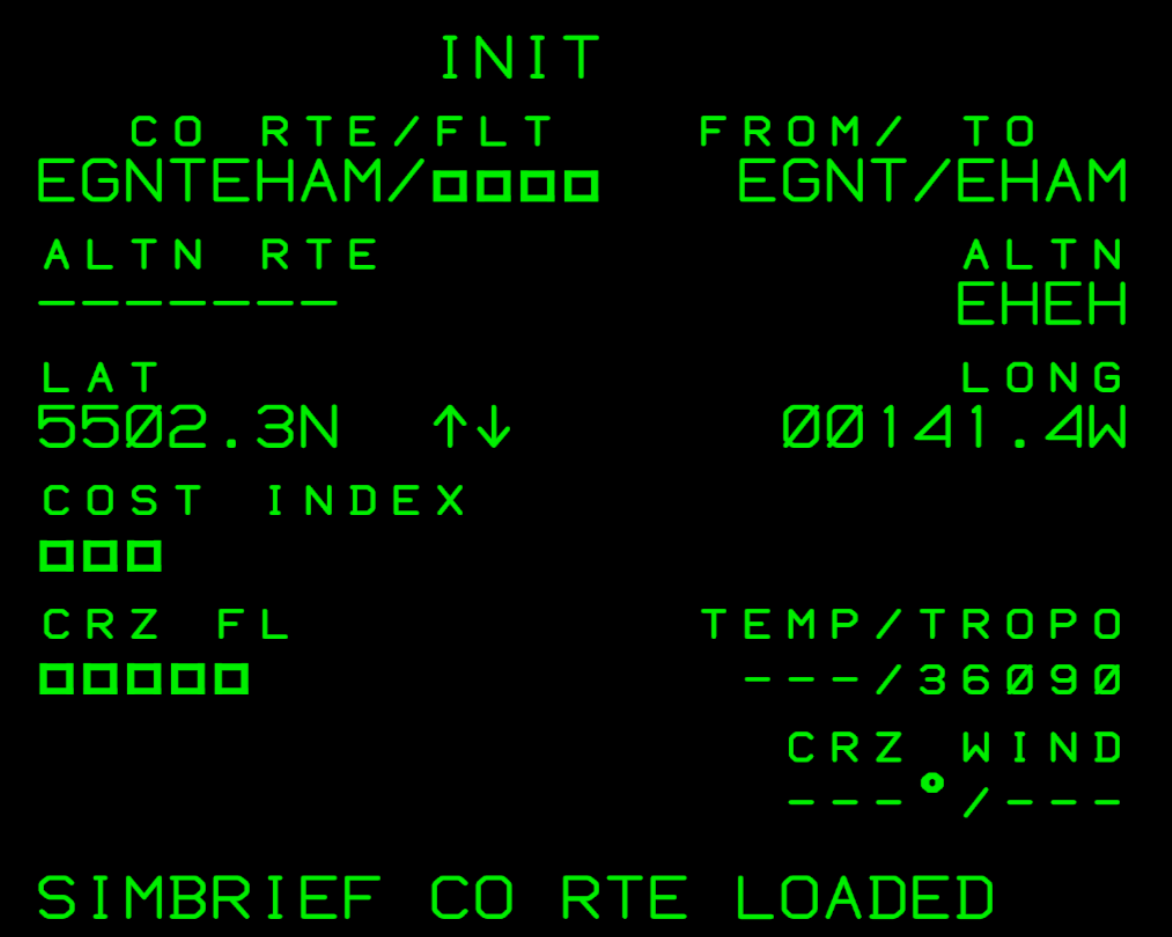
Once the ICAO codes have been entered into the CO RTE field, a ‘SIMBRIEF CO RTE REQUESTED’ message will be generated in the scratchpad, indicating that the request is in progress, followed by a ‘SIMBRIEF CO RTE LOADED’ message once the import is complete. This message can be cleared from the scratchpad with the CLR key.
The CO RTE functionality will populate the TO/FROM and ALTN fields on the INIT A page, and will add all enroute waypoints and airways to the F-PLN page. It will not populate Departures and Arrivals in the flight plan, and other mandatory fields, including COST INDEX, CRZ FL and FLT on the INIT A page, BLOCK, ZFW, and TOGW on the INIT B page, must be populated manually by the pilot prior to flight.
If a SimBrief import fails, a ‘NOT IN DATABASE’ message will be generated in the scratchpad. The most likely causes of this are an incorrect or missing SimBrief Pilot ID on the EFB, an ICAO airport pair that does not match the airports in your most recently generated SimBrief OFP, or your aircraft type does not match the aircraft type in your most recently generated SimBrief OFP.
LOCAL FILES
Flight plans that are stored locally on your PC can be imported into the FMS. This method is only available for PC users due to file management requirements.
This method of flight plan import requires flight plan files to be saved in an .RTE format and in a specific file directory on your PC. The exact file directory is dependent on the product and the version of MSFS being used:
F70 Professional
- MSFS 2020 – Microsoft Store: C:\Users\**USERNAME**\AppData\Local\Packages\Microsoft. FlightSimulator_8wekyb3d8bbwe\LocalState\packages\justflight-aircraft-f70\work\FlightPlans
- MSFS 2020 – Steam:
C:\Users\**USERNAME**\AppData\Roaming\Microsoft Flight Simulator\Packages\justflight-aircraft-f70\work\FlightPlans - MSFS 2024 – Microsoft Store: C:\Users\**USERNAME**\AppData\Local\Packages\Microsoft. Limitless_8wekyb3d8bbwe\LocalState\WASM\MSFS2024\justflight-aircraft-f70\work\FlightPlans
- MSFS 2024 – Steam:
C:\Users\**USERNAME**\AppData\Roaming\Microsoft Flight Simulator 2024\WASM\MSFS2024\justflight-aircraft-f70\work\FlightPlans
F100 Professional
- MSFS 2020 – Microsoft Store: C:\Users\**USERNAME**\AppData\Local\Packages\Microsoft. FlightSimulator_8wekyb3d8bbwe\LocalState\packages\justflight-aircraft-f100\work\FlightPlans
- MSFS 2020 – Steam:
C:\Users\**USERNAME**\AppData\Roaming\Microsoft Flight Simulator\Packages\justflight-aircraft-f100\work\FlightPlans - MSFS 2024 – Microsoft Store: C:\Users\**USERNAME**\AppData\Local\Packages\Microsoft. Limitless_8wekyb3d8bbwe\LocalState\WASM\MSFS2024\justflight-aircraft-f100\work\FlightPlans
- MSFS 2024 – Steam:
C:\Users\**USERNAME**\AppData\Roaming\Microsoft Flight Simulator 2024\WASM\MSFS2024\justflight-aircraft-f100\work\FlightPlans
These file directories will be created automatically the first time a flight is loaded in the aircraft.
It is recommended that the flight plan files are named in an ICAOICAO.rte format (e.g. EGNTEHAM.rte or
KORDKMSP.rte).
With a flight plan saved in a .RTE format and in the correct file directory, enter the exact file name of the flight plan file into the CO RTE field on the FMS INIT A page (e.g. ‘EGNTEHAM’ or ‘KORDKMSP’).
Once the file name has been entered into the CO RTE field, a ‘LOCAL CO RTE REQUESTED’ message will be generated in the scratchpad, indicating that the request is in progress, followed by a ‘LOCAL CO RTE LOADED’ message once the import is complete. This message can be cleared from the scratchpad with the CLR key.
The CO RTE functionality will populate the TO/FROM and ALTN fields on the INIT A page, and will add all enroute waypoints and airways to the F-PLN page. It will not populate Departures and Arrivals in the flight plan, and other mandatory fields, including COST INDEX, CRZ FL and FLT on the INIT A page, BLOCK, ZFW, and TOGW on the INIT B page, must be populated manually by the pilot prior to flight.
If a local file import fails, a ‘NOT IN DATABASE’ message will be generated in the scratchpad. The most likely causes of this are the inputted text in the CO RTE field not exactly matching the filename, or the .RTE file not being placed in the correct folder.
We recommend the use of the SimBrief Downloader desktop app to streamline the process of saving flight plan files in the correct format and location. Once the file directories are set up in the SimBrief Downloader app, all future OFPs generated on the SimBrief website will be automatically saved in the correct format and location without any manual file management.