An entire list of LVARs is not available for the product, as a list of such size would require a considerable amount of time to keep updated alongside every update to the product. We instead recommend that all home cockpit users who require the use of LVARs take advantage of the tools available within the simulator's Developer Mode.
Developer Mode can be enabled in the simulator in the following locations:
MSFS 2020:
Options > General Options > Developers
MSFS 2024:
Settings > General > Graphics > Advanced Options
When loaded into the aircraft, move your mouse to the top of the screen and a black menu bar will appear. On that menu, navigate to:
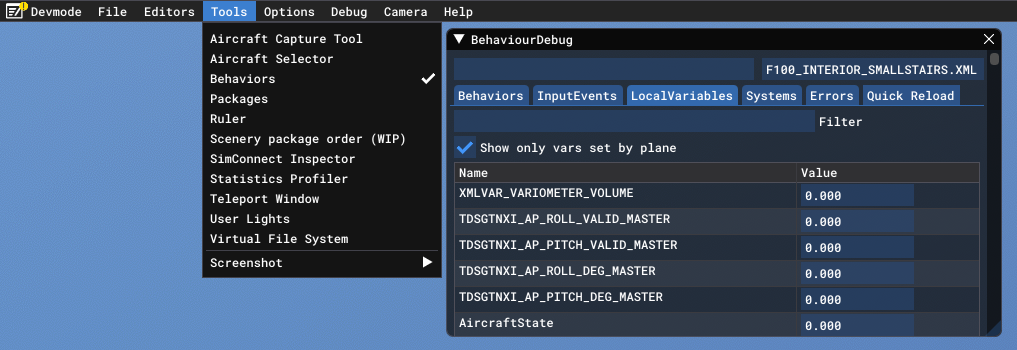
MSFS 2020:
Windows > Behaviors > Local Variables
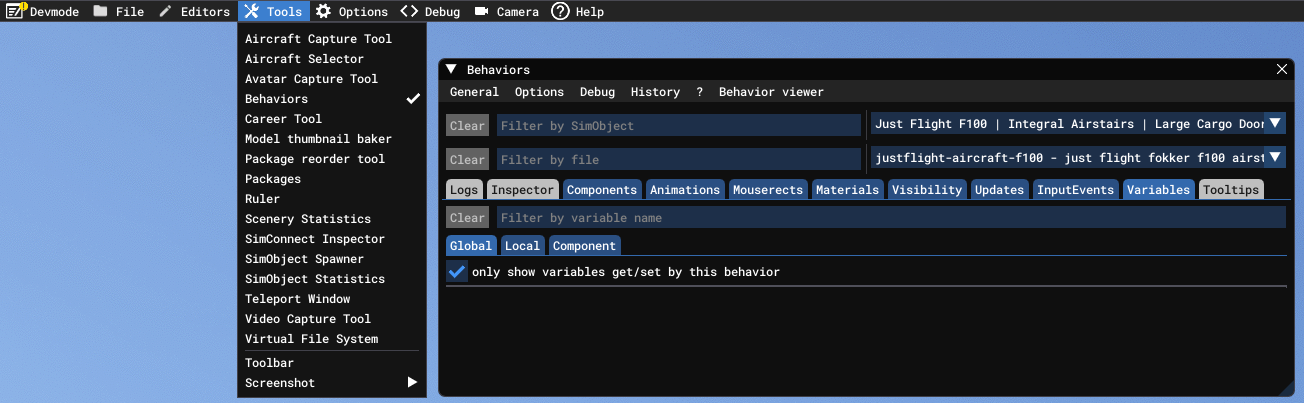
MSFS 2024:
Tools > Behaviors > Variables
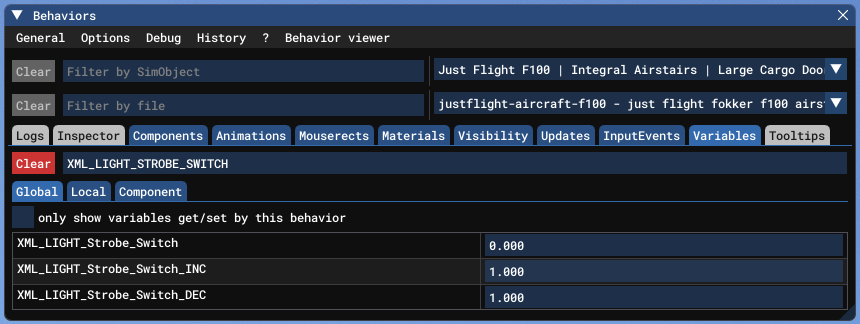
A 'Filter' field will be available on this pop-up window that allows you to enter instrument names or abbreviations into the ‘Filter’ field. For example, if you are trying to find the LVARs used for the strobe lights, you can search for ‘strobe’, and you will find the following LVAR:
XML_LIGHT_STROBE_SWITCH
With the variable displayed on the pop-out window, moving the control in the cockpit will vary the output on the right side of the window. For the XML_LIGHT_STROBE_SWITCH example above, the switch has three positions, and we find out the LVAR output for each of these positions is by moving the switch and watching the LVAR output change:
0 = Switch at OFF
1 = Switch at AUTO
2 = Switch at ON
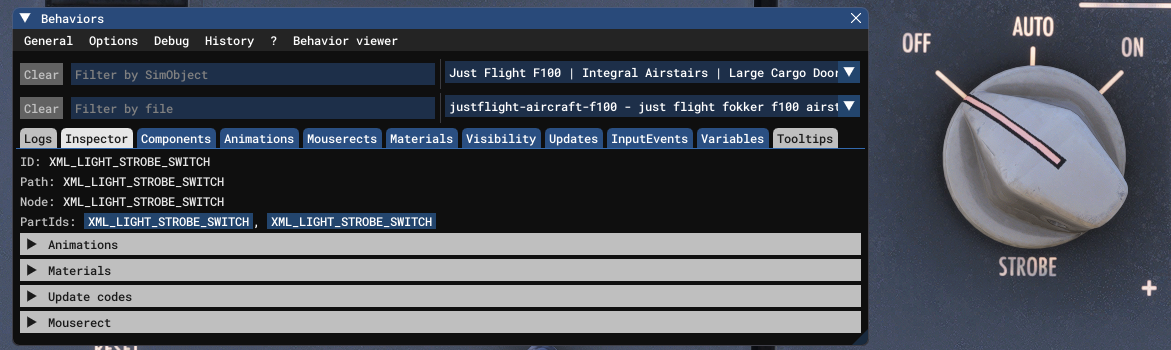
Another very useful feature of these menus is that it is possible to automatically populate the name of a cockpit control into the Behaviors (MSFS 2020) or Inspector (MSFS 2024) window. Simply move your cursor over any control in the cockpit and then press [CTRL]+[G] to automatically populate the name of the LVAR in the pop-up window. The autopopulated names can then be copied and pasted into the LocalVariables (MSFS 2020) or Variables (MSFS 2024) windows.